
Own S3 storage
What it is
Rabbithole never stores your files itself. By default, the encrypted bytes of a Blob Storage vault are held by Caffeine Blob Storage — an external service that keeps them on S3-compatible storage and takes care of paying for that space and keeping the stored data in order.
Own S3 storage swaps that service for a bucket you own — the container an S3 provider keeps objects in. The way everything works stays the same; only two things change:
- Who holds the bytes — your own bucket instead of Caffeine.
- Who pays for the space — you pay your provider directly, instead of your canister paying Caffeine.
Everything else is unchanged. Files are still encrypted in your browser, and your canister still keeps the file records, the access rules, and signs the links used to read and write. Your bucket only ever holds encrypted data, so the provider can see object sizes and access times but never anything readable.
Why you might use it
- Keep the encrypted files with a provider you chose and trust, instead of the default service.
- Pick the region and retention policy yourself, and pay the provider at their price.
- Let your own canister — not a third party — track what is stored and clean up what you delete.
Own S3 storage is a switch you turn on for an existing Blob Storage vault, not a separate mode you pick when creating one. On-chain vaults keep the bytes inside your canister and never use a bucket.
What you need, and where to get it
A bucket is just a container that a cloud provider keeps objects in. To connect one you need an S3-compatible bucket and an access key that can read and write to it. Any of these work:
- AWS S3, Cloudflare R2, Backblaze B2, Wasabi — hosted providers. You sign up, create a bucket, and generate an access key.
- MinIO — S3-compatible storage you run yourself, if you'd rather host it.
At your provider you do three things: create a bucket, note its region and the S3 API address (the endpoint), and create an access key scoped to that one bucket — not your whole account. That last part matters: the key lives in your canister, so give it the least access it needs.
Here is what each field on the connect form is and where it comes from:
How you connect a bucket
Connecting a bucket is a Pro feature. Once it is connected, everyday use — uploading, downloading, sharing — works exactly as before.
Open Data storage
On a Blob Storage vault, open the Data storage settings page.
Enter the bucket details
Fill in the fields above: endpoint, region, bucket name, an optional prefix, and the access key with its secret. A session token and the path-style toggle are there for providers that need them.
Rabbithole checks access before saving
Before anything is stored, Rabbithole writes, reads, and deletes a throwaway test object to confirm the access key really works. If that check fails, nothing is saved — no bucket record and no secret.
The browser never receives your S3 secret. The storage canister keeps it and uses it only to sign short-lived links for specific objects. Canister state is copied across the Internet Computer, so treat this as a practical convenience, not a password vault: give the access key permission for this one bucket and prefix, nothing more.
Where the file lives
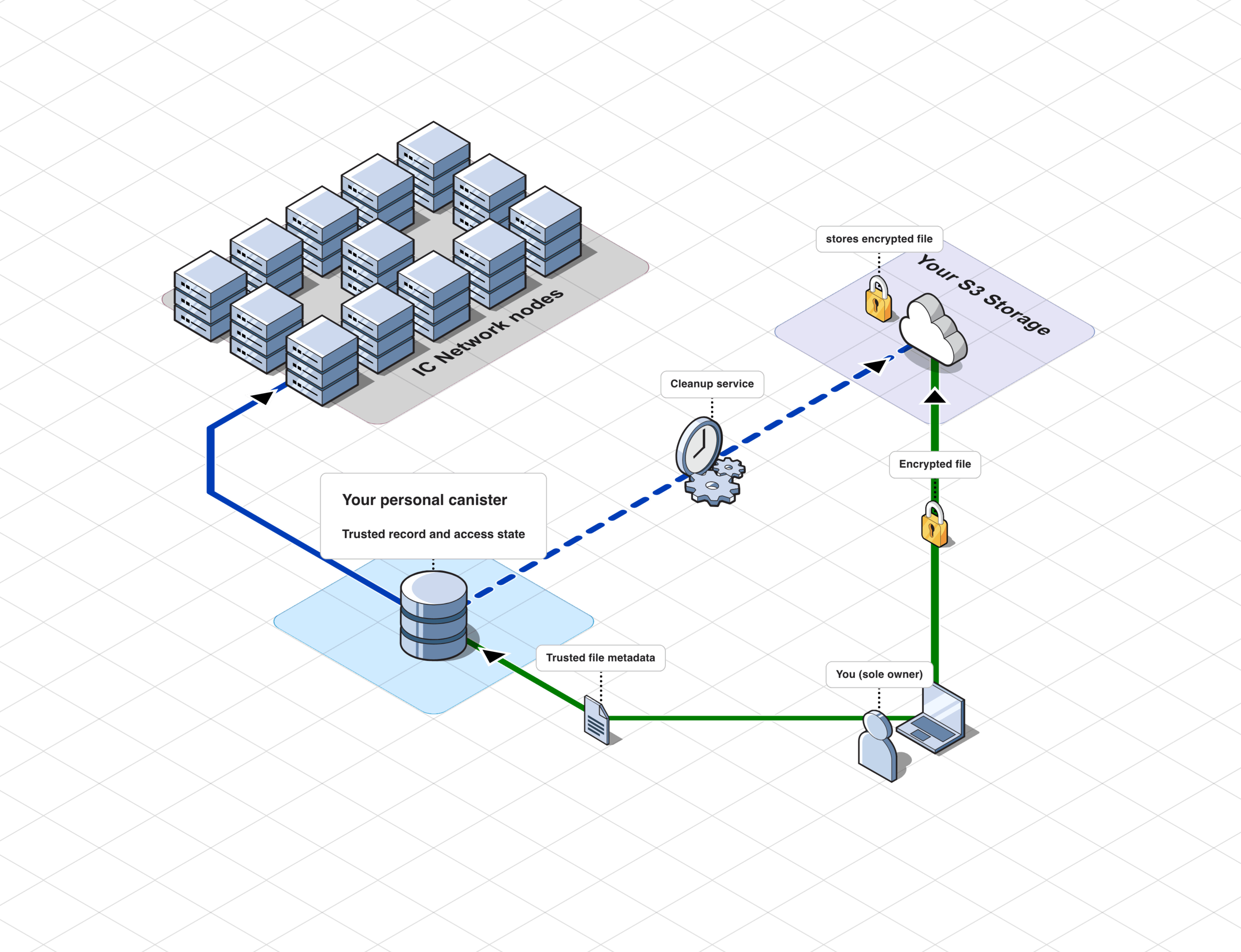
Your canister and your bucket do different jobs. The canister keeps the file record, decides who has access, and signs the links used to read and write. The bucket holds two encrypted objects per file and nothing else:
The object names are just hashes under the prefix you chose. They carry no file names, folders, or email addresses, so the provider sees only object sizes and access times — never anything readable.
How upload works
Uploading happens in a few steps.
Prepare
The browser encrypts the file, then asks the canister for permission to upload. The canister checks that you may write and hands back short-lived signed links for this specific file.
Send it to your bucket
The browser uploads the encrypted file straight to your bucket using those links. Large files are sent in parts.
Confirm
Once the upload succeeds, the browser asks the canister to record the file: its size, its hash, and who may open it.
An upload that never reaches the confirm step does not become a file, and the leftover objects are cleaned up on their own.
How download works
The browser reads the encrypted file from your bucket, but it still asks the canister what to expect and for permission to decrypt, and checks the file against that before opening it. A link that leaks exposes only encrypted bytes — without the canister's approval, no one can decrypt them.
Each link works for one object and one action, and expires in minutes. Treat it like a key: whoever holds it can do that one action until it expires. A leaked read link shows only encrypted bytes; a leaked write link can at worst spoil an upload — it cannot reveal your files.
Deleting files
Deletion happens in two stages, and the cleanup runs by itself.
When you delete a file, it disappears from the app right away: the canister stops listing it and stops handing out the key to decrypt it.
The bytes are removed from your bucket afterwards, in the background. This is the job Caffeine's cleanup does in the default mode; with your own bucket, your canister does it — it sends a delete request and confirms the object is really gone before the job counts as done. A delete that does not go through is retried automatically. The one case that needs you is a broken access key: cleanup pauses and the page shows a warning until you replace it.
What it costs
There is no Rabbithole storage fee for the bytes. Your provider bills you for them directly, at whatever they charge.
Your canister still needs cycles for its own work: signing links and making the small delete and verify calls to your bucket during cleanup. With Pro, automatic top-ups can keep it funded.
Changing the access key or the bucket
- Replace the access key — same endpoint, bucket, and prefix. Create a new key at your provider, save it (Rabbithole re-checks access), then turn off the old one. Replacing the key on a bucket you already use does not require Pro.
- Move to a different bucket — a new endpoint, bucket, or prefix is treated as a new place. From then on, new uploads go there. Files you already stored keep pointing to where their bytes actually are.
Each file remembers the exact bucket it was written to. Connecting a new bucket changes where the next uploads go; it does not copy your existing files across.
What stays the same
Own S3 storage changes where the encrypted bytes live and who you pay for them. Ownership and protection do not change: files are still encrypted in your browser before they leave your device, the browser still verifies a file before decrypting it, and your canister still keeps ownership, access rules, and the trusted file records. Starter Vault and Pro still decide which encrypted uploads are allowed.
Because the bytes live in your bucket, keeping them reachable is between you and your provider. If you stop paying the provider or lose access to the bucket, the encrypted files can become unavailable. Your canister still keeps the file record either way.